


IPTV Casting Guide: How to Watch IPTV From Your Phone on a TV
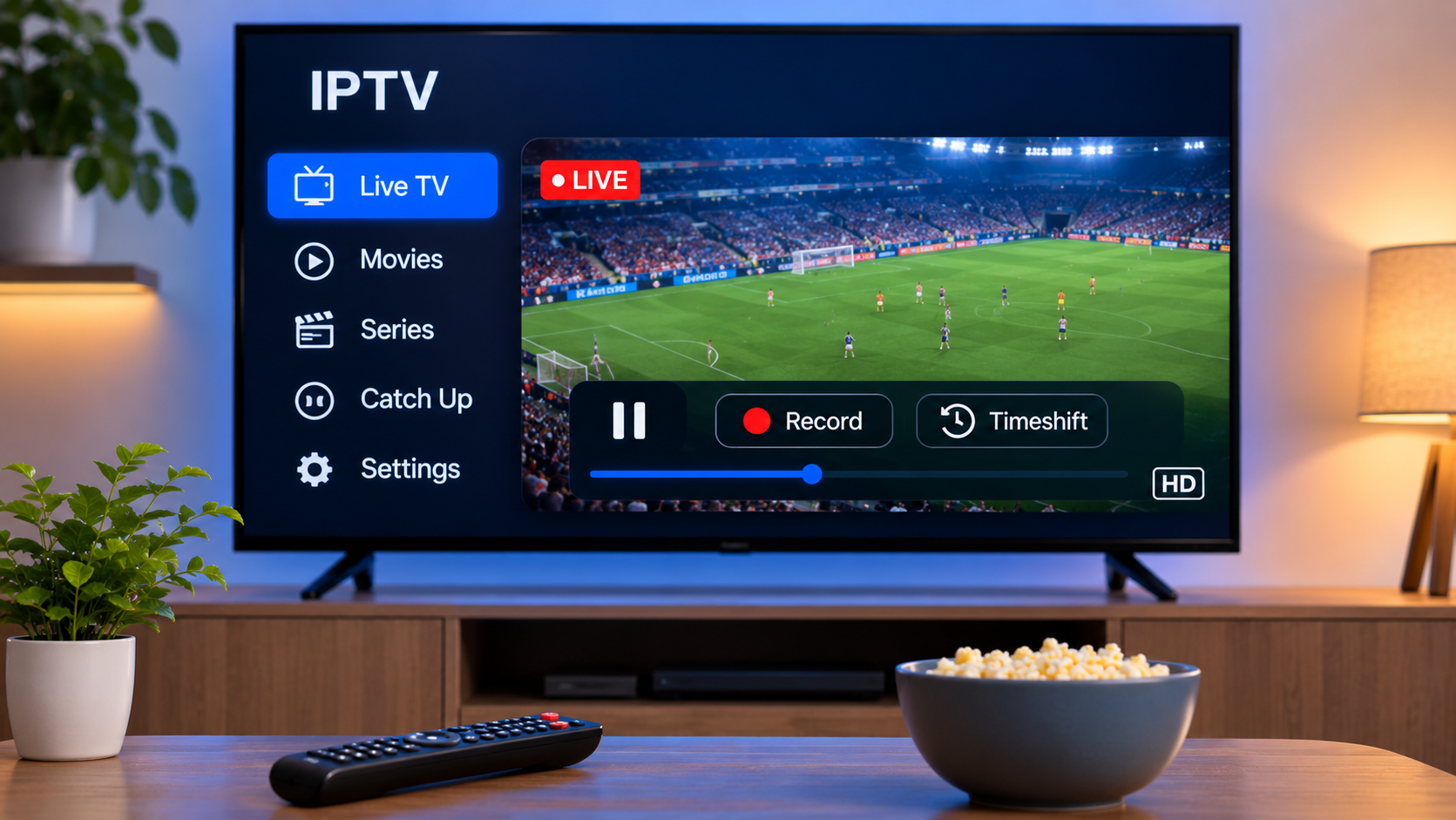
Watching IPTV directly on a Smart TV is convenient, but it is not the only way to move internet television onto a larger screen. Many viewers prefer to browse channels, movies, or series on a smartphone or tablet and then send the video to their television.
Casting can be especially useful when a television does not support a preferred IPTV application or when users want a simpler way to control playback from a mobile device.
The exact setup depends on the television, streaming device, IPTV player, and home network. Understanding how casting works can help users choose the right method and avoid common connection problems.
What Does Casting IPTV Mean?
Casting allows a phone, tablet, or computer to send video playback to another compatible screen.
Instead of watching IPTV on the small display of a mobile device, the television becomes the main viewing screen.
Depending on the technology being used, the mobile device may act primarily as a controller after playback begins.
This differs slightly from screen mirroring, where everything displayed on the phone or computer is duplicated on the television.
Casting and Screen Mirroring Are Different
The terms are often used interchangeably, but they describe different processes.
Casting
With true casting, the application communicates with a compatible television or streaming receiver.
After selecting the cast option, the receiving device handles playback while the phone remains available for navigation and controls.
This can be more convenient because users may still be able to use other functions on the phone without displaying everything on the television.
Screen Mirroring
Screen mirroring copies the mobile or computer screen onto the TV.
If the viewer opens menus, notifications, or another application, those actions may also appear on the television.
Mirroring can be useful when an IPTV player does not offer native casting, but it may place more demand on the transmitting device and network.
What Equipment Is Needed?
A basic IPTV casting setup generally requires:
-
A compatible smartphone, tablet, or computer
-
An IPTV application or player
-
A television or streaming receiver that supports casting or mirroring
-
A stable local network
-
IPTV account access
In many setups, both the mobile device and television need to be connected to the same Wi-Fi network.
If the two devices are connected to different networks, they may not be able to discover each other.
Check Whether Your TV Supports Casting
Many modern Smart TVs include some form of wireless casting or screen-sharing technology.
Support varies according to the manufacturer, operating system, and television model.
Before purchasing additional equipment, check the television settings for options related to:
-
Casting
-
Screen sharing
-
Wireless display
-
Device connection
-
AirPlay
-
Mirroring
The exact terminology can differ between manufacturers.
If the television does not include a compatible feature, an external streaming device may provide it.
Using an External Streaming Device
A television does not necessarily need built-in casting support.
An HDMI streaming device can add wireless receiving capabilities to many televisions.
Once the device is connected and configured, compatible applications may detect it as a playback destination.
This approach can also be helpful with older televisions that have an HDMI input but limited Smart TV functionality.
Before purchasing hardware, users should check whether it supports the phone, tablet, or computer they intend to use.
How to Cast IPTV From a Smartphone
The exact steps depend on the IPTV player, but a typical process looks like this:
-
Connect the television or streaming device to the home network.
-
Connect the smartphone to the same Wi-Fi network.
-
Open the IPTV application.
-
Select the content you want to watch.
-
Look for a cast or device icon.
-
Select the television or receiver.
-
Wait for playback to begin.
The smartphone can then be used to pause, change content, or control playback if the application supports these functions.
What If the IPTV App Has No Cast Button?
Not every IPTV player includes native casting.
If there is no cast option, users may have several alternatives.
Try Screen Mirroring
The phone's operating system may provide a built-in screen-sharing feature.
This duplicates the device display on the television.
Try Another IPTV Player
Another compatible player may provide built-in casting while supporting the same IPTV login method.
Before switching, check whether it accepts your existing M3U playlist, account credentials, or other setup format.
Install IPTV Directly on the TV
If the television supports a suitable IPTV player, direct installation may provide a simpler experience than casting.
Why Both Devices Usually Need the Same Network
Device discovery often takes place over the local network.
A phone connected to mobile data may not detect a television connected to home Wi-Fi.
Similarly, guest Wi-Fi networks sometimes isolate connected devices from each other.
If the casting destination does not appear, check that:
-
Both devices are using the same router
-
Mobile data is not replacing Wi-Fi
-
Guest network isolation is not enabled
-
The television is connected to the network
-
Casting permissions are enabled
Restarting both devices can also refresh network discovery.
Internet Stability Still Matters
Casting does not eliminate the need for a reliable internet connection.
IPTV still requires video data to reach the viewing device continuously.
Problems can occur when the network is overloaded by:
-
Large downloads
-
Online gaming
-
Multiple simultaneous video streams
-
Cloud backups
-
Software updates
-
Weak Wi-Fi signals
If casting frequently freezes, test whether normal IPTV playback on the phone also buffers.
If both experiences are unstable, the network connection may be responsible.
Router Placement Can Affect Casting
Wireless communication between the phone, television, and router works best when signal strength is reasonably good.
A router placed far from the living room or hidden behind large furniture may weaken performance.
Improving router placement can help with both IPTV streaming and device discovery.
For televisions located far from the router, a stronger home network setup may be more useful than repeatedly changing IPTV applications.
Can You Cast 4K IPTV?
Casting high-resolution video depends on the capabilities of the entire setup.
The IPTV content, player, receiving device, television, and network all need to support the desired resolution.
A 4K television alone does not guarantee that every cast stream will play in 4K.
High-resolution streaming also requires more network bandwidth than lower-quality video.
If playback becomes unstable, reducing the video quality may help determine whether bandwidth is the issue.
Audio and Subtitle Considerations
Casting can sometimes change the way audio tracks or subtitles behave.
A subtitle that appears correctly on the phone may not display after casting if the receiving device does not support the same format.
Alternative audio tracks can behave similarly.
If subtitles or language tracks are important, test them after connecting to the television rather than assuming the mobile settings will automatically carry over.
Native casting generally provides better results than basic screen mirroring, but compatibility still depends on the application and content format.
Using IPTV From a Laptop
Computers can also be useful for sending IPTV to a television.
Depending on the operating system and software, users may be able to:
-
Cast from a compatible application
-
Mirror the desktop wirelessly
-
Connect directly with HDMI
A wired HDMI connection is worth considering when wireless casting is unreliable.
It avoids some network-related discovery issues and can provide a straightforward way to display the computer screen on the television.
Casting in a Multi-Device Household
Casting can be particularly useful when several household members use different devices.
One person may prefer browsing IPTV on a tablet while another uses a Smart TV application directly.
When comparing IPTV plans, it is important to understand simultaneous connection limits.
Sending video to a television does not necessarily mean that additional active IPTV connections are automatically included.
Viewers comparing services can review ZYRA IPTV alongside other IPTV options while considering supported devices, subscription durations, multi-device plans, setup guidance, EPG features, and connection requirements.
The right option should match how many screens are actually used at the same time.
Common IPTV Casting Problems
Most casting problems fall into a few common categories.
The TV Does Not Appear
Check whether both devices are on the same Wi-Fi network.
Restart the application and confirm that casting is enabled on the television.
Casting Connects but Video Does Not Play
Try another channel or piece of content.
If only one stream fails, the issue may be related to that particular media format.
Video Buffers Frequently
Test internet performance on the IPTV device.
Also check whether other household devices are heavily using the connection.
Audio Plays but the Screen Is Blank
This can indicate a compatibility problem between the video format, IPTV player, and receiving device.
Trying another compatible player may help identify the cause.
Subtitles Disappear
Open the playback controls after casting and check whether subtitle options are available on the receiving device.
When Direct Smart TV Playback Is Better
Casting is convenient, but it is not always the best solution.
Installing IPTV directly on a Smart TV or streaming box may be preferable when:
-
IPTV is watched every day
-
A remote control is preferred
-
The TV supports a suitable player
-
Users want easier EPG navigation
-
The phone should remain completely independent
-
Casting frequently disconnects
Casting is often most useful as a flexible alternative rather than a requirement.
Keep Applications Updated
Older versions of IPTV or casting applications can develop compatibility problems after operating-system updates.
Users should periodically update:
-
The IPTV player
-
Smartphone software
-
Smart TV software
-
Streaming-device firmware
-
Casting-related applications
After updating, restart the devices before troubleshooting further.
Protect IPTV Login Information
Casting does not require sharing IPTV credentials with other people.
Usernames, passwords, M3U URLs, and server information should remain private.
Avoid entering account details into unknown applications simply to gain casting functionality.
Choose trusted IPTV players and software sources whenever possible.
Consider Content Licensing
IPTV is a delivery technology for television and video content.
Casting the stream to another screen does not change the licensing status of the programming.
Users should choose legitimate services, review applicable local rules, and ensure they are authorized to access the content being streamed.
Final Thoughts
Casting provides a flexible way to watch IPTV on a larger television without relying entirely on the TV's built-in applications.
For a smooth setup, the mobile device, IPTV player, television or streaming receiver, and home network must work together correctly.
Users should first check for native casting support, confirm that both devices share the same network, and test internet stability. If wireless casting remains unreliable, screen mirroring, direct Smart TV installation, a streaming box, or an HDMI connection may provide better alternatives.
Choosing the right method ultimately depends on the equipment already available and how frequently IPTV is watched on the main television.

 Հայերեն
 English
 French
 Deutsch
 Greek