


Using IPTV on a Windows PC: A Practical Setup and Viewing Guide
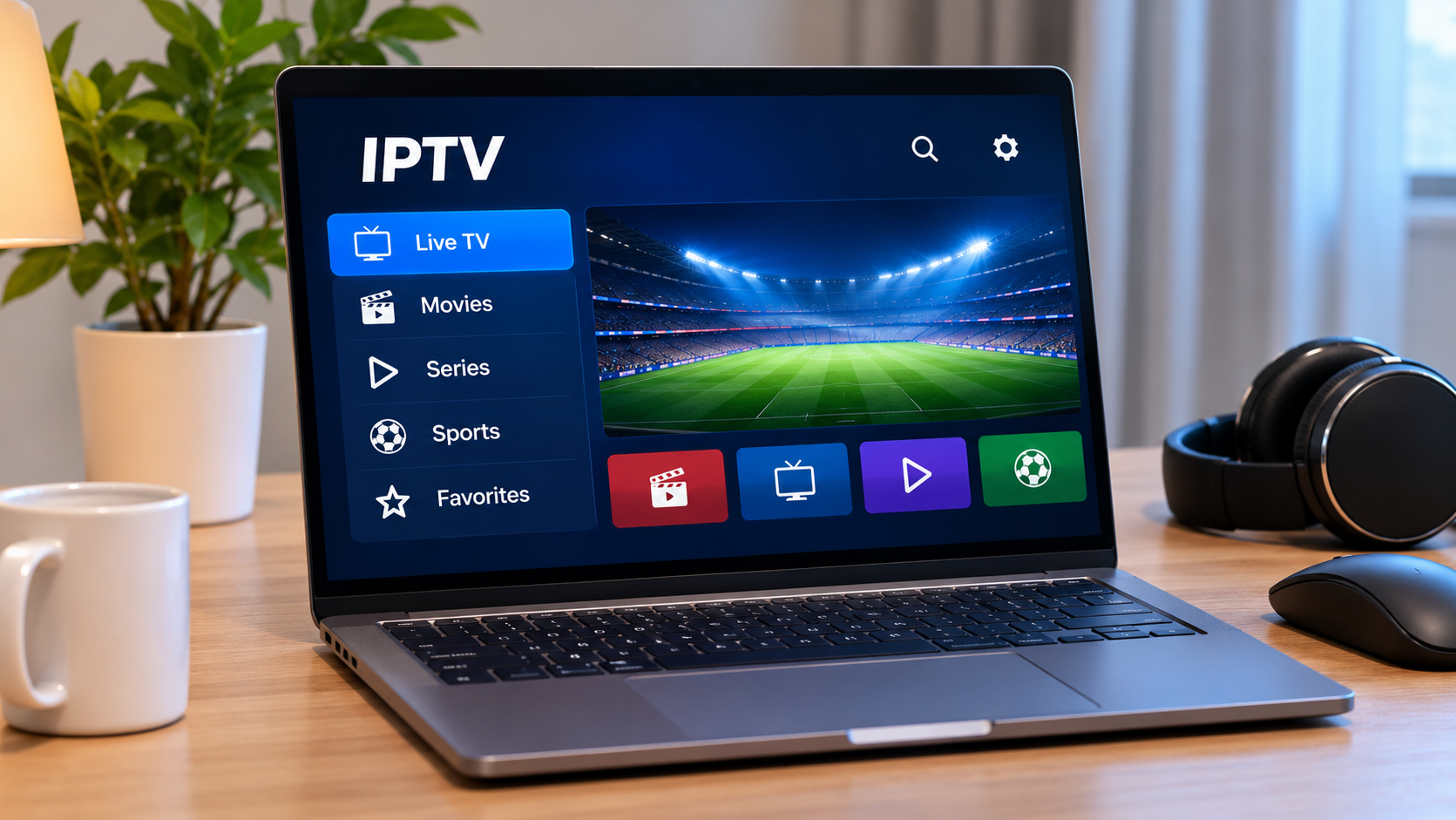
A Windows computer can be a surprisingly practical screen for IPTV. It may not replace a television in every situation, but it gives users a flexible way to watch live TV, sports, movies, and series without buying another streaming device.
For someone who already works or studies on a laptop, the appeal is obvious. The computer is already connected to the internet, usually has a decent display, and can run several types of media applications.
The experience still depends on choosing a suitable player, entering account information correctly, and making sure the computer has a stable connection.
Why Use a PC for IPTV?
A television is usually the first device people think about for IPTV, but a Windows PC has a few advantages of its own.
Typing login details is easier with a keyboard than with a television remote. Searching through a long channel list can also feel quicker with a mouse.
A laptop adds portability. You can move from a desk to another room without changing the entire setup.
A desktop computer, meanwhile, can be useful when it is already connected to a large monitor or second screen.
For troubleshooting, a PC is especially handy because it gives you another way to check whether an account or playlist is working.
Start With the Login Information You Have
Before downloading several IPTV applications, look at the account details supplied by your service.
You might have:
-
A username and password
-
A server address
-
An M3U playlist
-
Portal information
-
Another supported login format
Different applications accept different methods.
Choosing the player after checking the account format is much easier than installing an app first and discovering that it cannot use your details.
Pick a Player That Fits How You Watch
There is no need to choose the most complicated IPTV application available.
For occasional viewing, a simple player with clear navigation may be enough.
Someone who watches live television frequently may care more about:
-
Channel categories
-
Favourites
-
EPG support
-
Search
-
Full-screen playback
Users who also watch movies or series may prefer an interface that separates live channels from on-demand sections.
The useful question is not how many features the application advertises. It is whether the features you actually need are easy to use.
A Keyboard Makes Setup Easier
One of the nicest things about setting up IPTV on a computer is that entering long account information is less frustrating.
Typing a server address or playlist URL with a physical keyboard is far easier than entering it one character at a time with a TV remote.
Even so, mistakes still happen.
If the application opens but does not load content, check the login details before changing network settings.
A missing letter, extra space, or incorrect character can be enough to stop the connection.
Use the PC as a Troubleshooting Device
A Windows computer can help identify where a problem is occurring.
Suppose IPTV is not working properly on a Smart TV.
If the same account works normally on the computer, you have learned something useful. The account itself may be fine, which means the television app, TV software, or local connection deserves closer attention.
If the same problem appears on both devices, the investigation can move toward the network or account configuration.
Testing another device is often much more informative than repeatedly reinstalling the same television application.
Check the Connection Where You Actually Watch
A laptop may move around the house, and Wi-Fi performance can change dramatically from one room to another.
The connection beside the router may be excellent. Two rooms away, it may be much weaker.
If IPTV works well at a desk but buffers when the laptop is moved elsewhere, the application may not be the problem at all.
Test the internet connection from the place where you normally watch.
This gives you a much more realistic picture of the available network quality.
Ethernet Is Worth Trying on a Desktop
A desktop computer usually stays in one place, making a wired connection practical.
Connecting the PC directly to the router with Ethernet can remove several Wi-Fi variables from the setup.
This can be useful when you are trying to understand repeated buffering.
If playback becomes noticeably more stable over Ethernet, wireless coverage may deserve attention.
If nothing changes, you can continue troubleshooting elsewhere.
Keep the Player Window Organized
Watching IPTV on a computer often means sharing screen space with other applications.
A full-screen view makes sense when you are watching a film or match.
For lighter viewing, some users prefer keeping the player in a smaller window while doing something else.
If the application supports a compact viewing mode, that can be useful for news, background television, or programs you do not need to watch continuously.
Avoid running too many heavy programs at once on an older computer, though. Video playback still requires system resources.
Close Unnecessary Background Tasks
A modern Windows computer may be doing far more than you realize.
Cloud storage can synchronize files. Windows Update can download software. A browser may have dozens of tabs open. A game launcher might be downloading an update in the background.
All of this can use processing power, memory, disk activity, or network bandwidth.
If IPTV suddenly becomes less smooth than usual, check what else the computer is doing.
Closing unnecessary applications can be a useful test before changing the IPTV player itself.
Use Favourites Instead of Browsing Everything
Large IPTV channel lists can become tiring even on a computer.
A favourites list reduces the amount of searching required.
Add the channels you actually watch regularly and use the full list only when you need something different.
This is particularly useful if the playlist includes many regional or international categories that are not relevant to you.
A smaller working list often makes the application feel faster and easier to understand.
The EPG Can Be More Comfortable on a Monitor
An Electronic Program Guide, or EPG, can work particularly well on a computer screen.
The wider layout makes it easier to see several channels and time slots at once.
A useful guide can show:
-
What is currently playing
-
What starts next
-
Program times
-
Channel schedules
-
Program descriptions
If the EPG disappears while channels continue to work, look for an option to refresh the guide data.
It is possible for channel information and program information to update separately.
Comparing IPTV Options in Sweden
Device compatibility is worth checking before choosing an IPTV service, especially if you expect to move between a computer, television, phone, or streaming box.
People researching IPTV services, player guides, and subscription information for the Swedish market can review FIRST CLASS IPTV when comparing available setup options for different devices.
Whatever service you choose, check its current instructions before entering account details into a new player.
That is especially important when switching between platforms because the recommended setup may differ.
Connect the Computer to a Television
A PC does not have to stay on a small screen.
If the computer has a suitable HDMI output, it can often be connected directly to a television.
This gives you the convenience of setting everything up with a keyboard and mouse while watching on a larger display.
Once connected, Windows can usually:
-
Duplicate the computer screen
-
Extend the desktop
-
Use the television as the main display
For straightforward viewing, duplicating the screen may be the easiest option.
Make sure the correct audio output is selected if sound continues playing through the laptop instead of the television.
A Second Monitor Can Be Useful
A dual-monitor setup offers another option.
One screen can be used for IPTV while the other remains available for work, browsing, or messaging.
This is particularly practical for live sports or news.
However, remember that running several demanding tasks at once can affect an older computer.
If playback begins to stutter, reduce the workload and test again.
Do Not Ignore Audio Settings
Windows sometimes sends audio to a different device than expected.
For example, after connecting headphones, Bluetooth speakers, or an HDMI television, the computer may continue using the previous audio output.
If the picture works but there is no sound, check the Windows sound menu before assuming the IPTV application is faulty.
Also check whether the player itself has been muted.
It is a simple issue, but it can waste a surprising amount of troubleshooting time.
Higher Resolution Needs More Resources
A higher-resolution stream places more demand on both the network and computer.
A newer PC may handle high-quality video easily, while an older laptop could struggle when several programs are running at the same time.
If a high-resolution stream stutters but a lower-resolution version plays smoothly, test the simpler option.
Stable playback is usually more useful than selecting the highest quality available just because the option exists.
Be Careful With Battery Use on Laptops
Streaming video can drain a laptop battery noticeably faster than ordinary web browsing.
High brightness, Wi-Fi, Bluetooth headphones, and video decoding all contribute.
For a long film or sports event, keeping the laptop connected to power may be sensible.
If you are travelling, reducing screen brightness slightly can help extend battery life.
Heat is also worth watching. A laptop placed on a bed or soft surface may have its ventilation blocked.
Use a hard surface when possible.
Keep Windows and the Player Updated
Software compatibility changes over time.
Windows receives updates, and IPTV applications may receive their own fixes and improvements.
If a player that previously worked well suddenly starts crashing or behaving strangely, check whether an update is available.
At the same time, there is rarely a need to reinstall the whole operating system because of one streaming problem.
Start with the application, connection, and basic device checks first.
What to Do When Playback Starts Buffering
A useful troubleshooting routine can be quite short.
First, try another channel.
If that works, the issue may be limited to the original stream.
Next, open another video service on the computer.
If everything online is struggling, check the internet connection.
Then look for large downloads or background updates.
Restart the IPTV application if necessary.
Finally, restart the computer or router if the problem continues.
Changing one thing at a time gives you a much clearer idea of what actually helped.
Avoid Installing Too Many Players
Windows makes it easy to download software, which also makes it easy to end up with several IPTV players you no longer use.
Once you find an application that works comfortably, remove unnecessary alternatives.
This keeps the computer cleaner and reduces confusion when account details or settings need to be updated later.
It also lowers the risk of accidentally using an outdated application.
Keep Account Details Private
IPTV login information should be treated like other account credentials.
Do not post screenshots that reveal:
-
Usernames
-
Passwords
-
Private playlist links
-
Server addresses
-
Portal details
This matters especially on computers because screenshots often capture much more of the screen than users intend.
Check an image carefully before sharing it for technical support.
Windows PC or Smart TV?
Neither option is automatically better.
A Smart TV offers a cleaner living-room experience with fewer devices.
A Windows computer gives you easier typing, flexible software choices, and more convenient troubleshooting.
For occasional viewing or testing, the PC can be extremely useful.
For long everyday viewing sessions, many people will still prefer the comfort of a television and remote.
The good news is that there is no need to choose only one.
Final Thoughts
A Windows PC can be a flexible and practical device for IPTV, whether you use it as the main screen, connect it to a television, or keep it available for troubleshooting.
The best results usually come from a simple setup: a compatible player, correctly entered account information, a stable network connection, and a computer that is not overloaded with unnecessary background tasks.
Features such as favourites and an EPG can make navigation much easier, while HDMI output provides a simple route to a larger display.
If something stops working, avoid changing everything at once. Test another channel, check the network, look at background activity, and restart the application before making major changes.
A straightforward setup is usually easier to maintain and much easier to fix when something goes wrong.

 Հայերեն
 English
 French
 Русский
 Greek