
IPTV on Chromecast and Google TV: Setup, Apps, and Streaming Tips
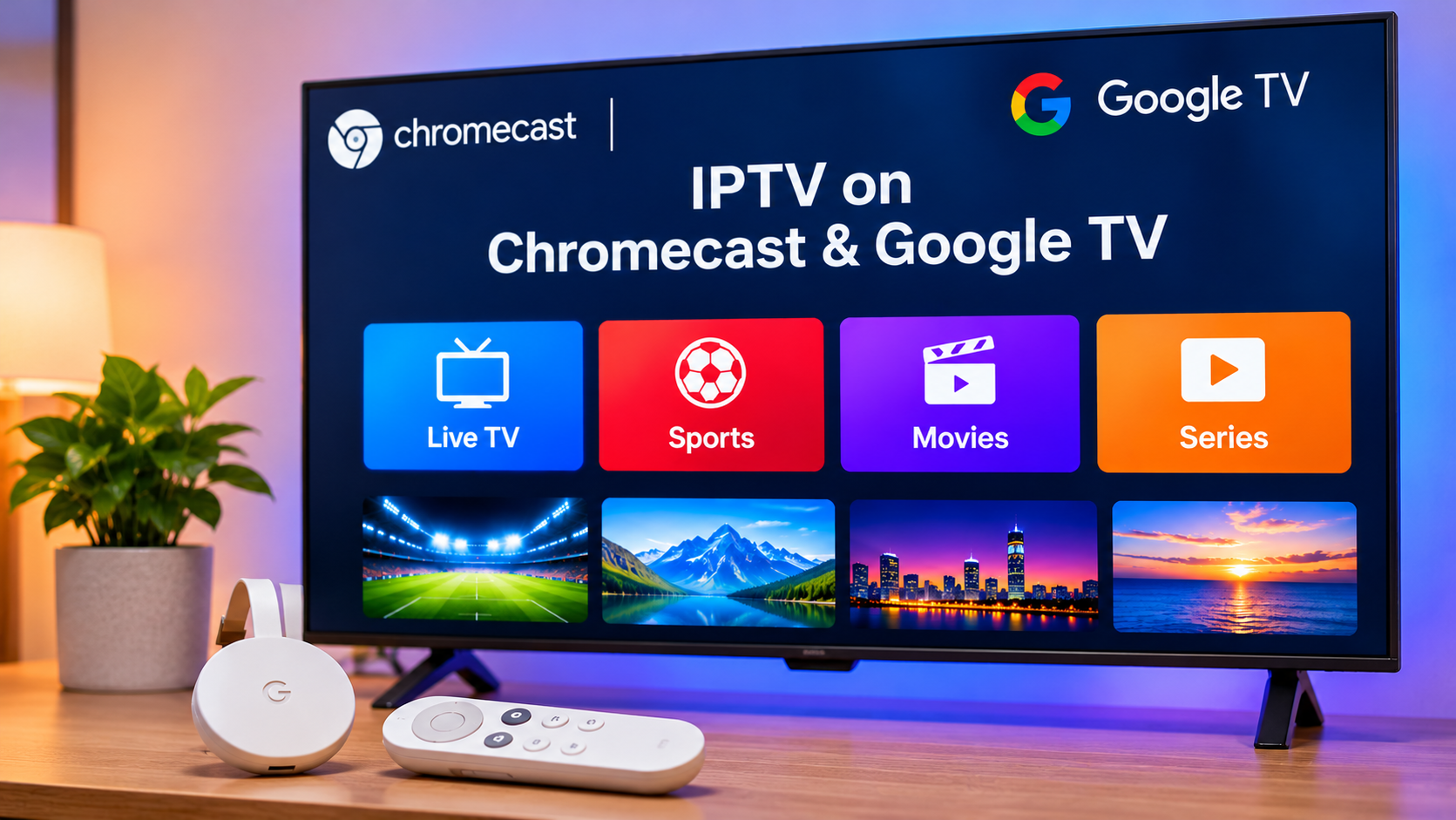
Chromecast and Google TV devices give viewers a flexible way to bring internet-based entertainment to a television. With a compatible IPTV player, an active subscription, and a stable internet connection, users can access live TV, sports, movies, and series without relying only on the apps built into the television.
The exact setup depends on which Chromecast model you use. Older Chromecast devices mainly receive content cast from another device, while Chromecast with Google TV and newer Google TV streaming devices can run applications directly.
Understanding the difference makes IPTV setup much easier.
Chromecast and Google TV Are Not the Same
Traditional Chromecast devices are designed mainly for casting.
This means the content is selected on a phone, tablet, or computer and then sent to the television.
Google TV devices work differently because they include their own interface, app store, remote control, and installed applications.
For IPTV users, this distinction matters.
A Google TV device may allow you to install an IPTV player directly, while an older Chromecast may require casting from a compatible mobile or desktop application.
Check Your Device Model First
Before installing anything, identify which device you own.
Common possibilities include:
-
Traditional Chromecast
-
Chromecast with Google TV
-
Google TV streaming devices
-
Television with Google TV built in
-
Android TV devices with Chromecast support
The available setup methods can differ between them.
Do not follow instructions written for Google TV if your device only supports basic casting.
Choosing a Compatible IPTV Player
Google TV provides access to many streaming applications through its app store.
When choosing an IPTV player, make sure it supports the connection method supplied by your service.
Common options include:
-
M3U playlists
-
Username and password login
-
Server URL
-
EPG support
-
Favorites
-
Channel categories
-
On-demand sections
Users comparing services such as Rapid IPTV should check device compatibility and available setup guidance before selecting a player for Google TV or Chromecast.
Install Apps From Trusted Sources
The Google Play Store is generally the simplest place to install IPTV applications on Google TV.
Using trusted sources makes updates easier and reduces the risks associated with modified software.
Avoid installing unfamiliar APK files unless you have verified the developer and source.
IPTV applications may store subscription details, so security should be taken seriously.
Enter Subscription Information Carefully
Many IPTV setup problems are caused by incorrect login details.
Depending on the provider, users may receive:
-
Username
-
Password
-
M3U URL
-
Server address
-
Portal information
Enter the information exactly as provided.
A missing character, incorrect symbol, or extra space can prevent the player from connecting.
Using a phone keyboard or compatible remote app may be easier than typing long URLs with a television remote.
Casting IPTV From a Phone
Some users prefer to run IPTV on their smartphone and cast the video to Chromecast.
The IPTV application must support casting for this method to work properly.
A typical process involves:
-
Connect the phone and Chromecast to the same Wi-Fi network.
-
Open the compatible IPTV application.
-
Select the content you want to watch.
-
Tap the cast icon when available.
-
Select the Chromecast device.
Once connected, playback should move to the television.
Not every IPTV player includes casting support, so check the application's features first.
Phone and Chromecast Must Share the Network
Casting usually requires both devices to be connected to the same local network.
If the phone is using mobile data while the Chromecast is connected to home Wi-Fi, the devices may not detect each other.
Check that both are connected to the correct Wi-Fi network before troubleshooting other settings.
Guest Wi-Fi networks can sometimes prevent devices from communicating with each other.
A Stable Internet Connection Matters
IPTV needs a continuous flow of data.
Weak Wi-Fi can result in:
-
Buffering
-
Freezing
-
Slow loading
-
Reduced picture quality
-
Cast sessions disconnecting
The problem may become more noticeable when several devices are using the same network.
Test the internet connection near the Chromecast or Google TV device rather than relying only on a speed test performed beside the router.
Improve Wi-Fi Placement
Chromecast devices are often installed behind a television, which can sometimes affect wireless performance.
If streaming is inconsistent, consider:
-
Moving the router closer
-
Keeping the router in an open area
-
Reducing nearby interference
-
Avoiding unnecessary network traffic
-
Checking Wi-Fi signal strength
A small change in router position can sometimes improve streaming noticeably.
Consider Ethernet
Some Chromecast and Google TV setups can use a compatible Ethernet adapter.
A wired connection may be useful when Wi-Fi is unreliable.
Ethernet can provide:
-
More consistent network performance
-
Reduced wireless interference
-
Better stability during busy periods
-
A more predictable connection
It will not fix problems with an individual stream, but it can eliminate many local network issues.
Keep Google TV Updated
System updates can improve security, stability, and application compatibility.
Check the device settings periodically for updates.
Keeping the operating system current may help prevent issues with IPTV players and other streaming applications.
The same applies to televisions that have Google TV built in.
Update the IPTV Player Too
The operating system is only one part of the setup.
IPTV applications also receive updates that may improve:
-
Playback
-
Login compatibility
-
EPG loading
-
Channel organization
-
Stability
-
Security
If the app suddenly starts behaving differently, check whether an update is available before reinstalling it.
Use Favorites for Faster Navigation
Large IPTV playlists can take time to browse.
Many players allow frequently watched channels to be saved as favorites.
This can be useful for:
-
Sports
-
News
-
Entertainment
-
Movies
-
International channels
-
Family viewing
A smaller favorites list makes the interface easier to use with a remote.
Understand EPG Support
EPG stands for Electronic Program Guide.
When supported, it can display current and upcoming television schedules directly inside the IPTV player.
Useful information may include:
-
Program names
-
Start times
-
End times
-
Upcoming shows
-
Channel schedules
If the guide appears at the wrong time, check the device's timezone and regional settings.
Why Casting Can Disconnect
Casting interruptions can happen for several reasons.
Common causes include:
-
Weak Wi-Fi
-
Phone power-saving settings
-
Network changes
-
Router instability
-
App crashes
-
Device updates
-
Temporary connection issues
If a cast session disconnects, reconnect both devices to Wi-Fi and restart the IPTV application.
Restarting Chromecast or Google TV may also help.
Why IPTV May Buffer on Google TV
Buffering is not always caused by the IPTV provider.
Possible causes include:
-
Weak wireless signal
-
Network congestion
-
Background downloads
-
High-resolution streams
-
Device performance
-
Router issues
-
Individual stream problems
Test several channels before changing settings.
If only one channel buffers, the problem may be limited to that stream.
If everything buffers, investigate the network first.
Restart Before Advanced Troubleshooting
A restart is often one of the most useful first steps.
If playback becomes unstable:
-
Close the IPTV player.
-
Restart the Google TV or Chromecast device.
-
Restart the router if necessary.
-
Wait for the network to reconnect.
-
Open the application again.
-
Test multiple channels.
This refreshes both the streaming device and network connection.
Keep Enough Storage Available
Google TV devices have limited internal storage.
Installing many applications can leave little space available and make the interface feel slower.
Remove apps you no longer use and check available storage occasionally.
A cleaner device is usually easier to maintain.
Avoid Untrusted Streaming Apps
Modified IPTV applications may promise extra features, but they can also introduce unnecessary security risks.
Whenever possible, use:
-
Official app stores
-
Recognized developers
-
Trusted application sources
Do not enter private subscription credentials into software from an unknown source.
Protect Your Login Details
IPTV account information should remain private.
Avoid posting:
-
Usernames
-
Passwords
-
M3U URLs
-
Server addresses containing credentials
-
Screenshots showing account information
If you need help online, describe the issue without revealing private login details.
Google TV vs Built-In Smart TV Apps
Some televisions already support IPTV applications, so an external Google TV device may not always be necessary.
A Google TV device can still be useful when:
-
The television has limited app support
-
The built-in system is slow
-
A preferred IPTV player is unavailable
-
The user wants a familiar Google interface
The best choice depends on the television and the apps you prefer.
Final Thoughts
Chromecast and Google TV can both be useful for IPTV, but they work in different ways.
Traditional Chromecast is mainly suited to casting from another device, while Google TV can run compatible IPTV applications directly.
For smoother streaming, choose a player that supports your subscription method, keep the device updated, use a stable network, and protect your login information.
If problems occur, test multiple channels, check the Wi-Fi connection, restart the equipment, and verify the app configuration before making more complicated changes.
With the right setup, Chromecast or Google TV can provide a convenient way to watch live TV, sports, movies, and series on a compatible television.

 Հայերեն
 French
 Deutsch
 Русский
 Greek