
IPTV on Chromecast in Finland: Casting, Setup, and Streaming Tips
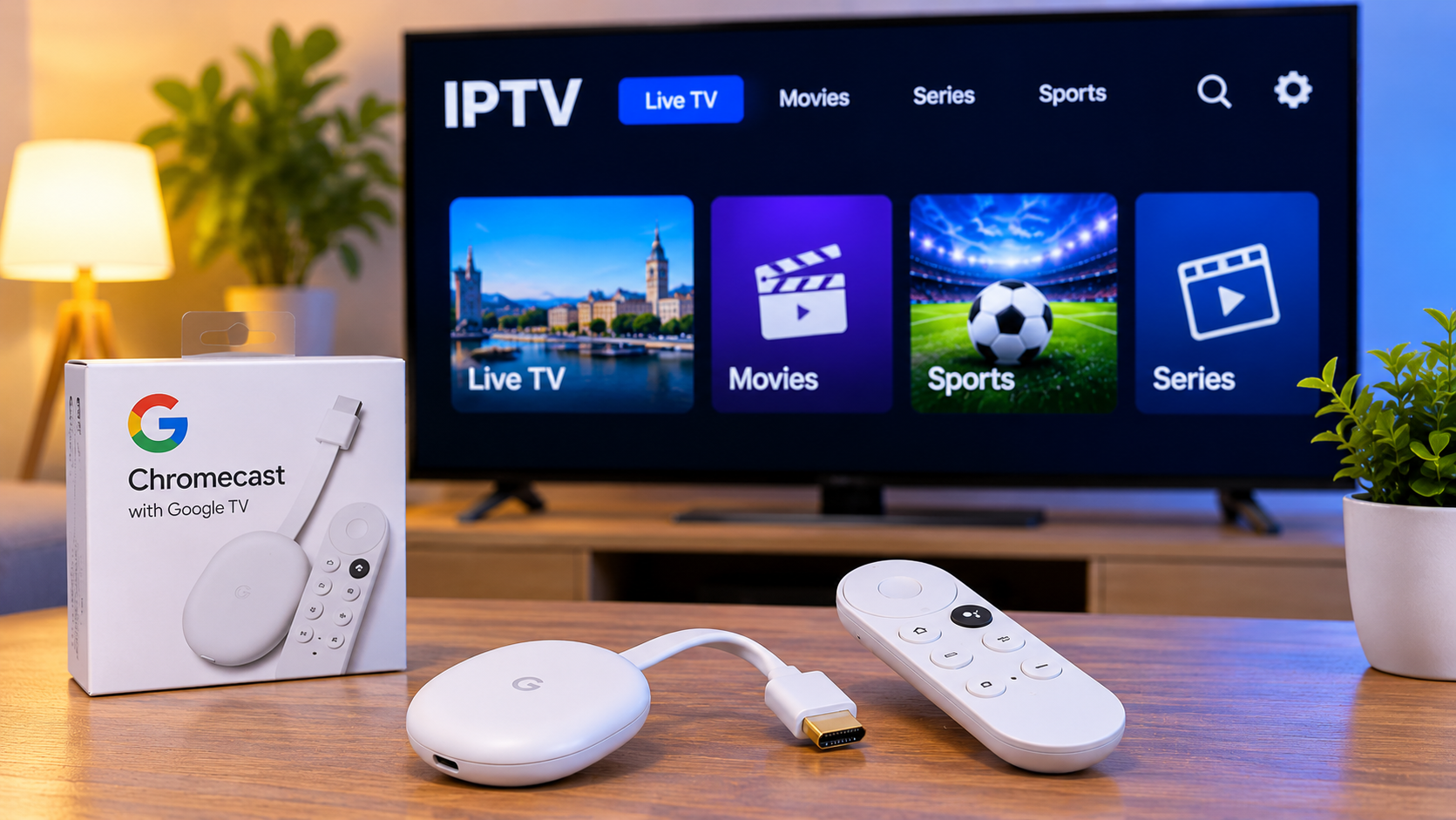
Chromecast can be a practical way to bring internet-based television to a larger screen without replacing an existing TV. For viewers in Finland, it can be especially useful when an IPTV app works well on a phone, tablet, or computer but the television itself has limited app support.
The exact setup depends on which Chromecast model you use. Older Chromecast devices mainly receive content cast from another device, while newer Google TV models can run compatible streaming apps directly.
Understanding that difference is the first step toward building a simple IPTV setup.
How IPTV Works With Chromecast
IPTV delivers television and video streams through an internet connection.
When Chromecast is involved, playback generally works in one of two ways:
-
The IPTV app runs on a phone or tablet and casts video to the television.
-
The IPTV player runs directly on a Chromecast with Google TV or another compatible Google TV device.
Both methods can work, but they provide different experiences.
Direct app installation is usually more convenient for regular television viewing, while casting can be useful for occasional use.
Traditional Chromecast vs Chromecast With Google TV
Not all Chromecast devices work in the same way.
Traditional Chromecast
Older Chromecast models depend heavily on another device.
You normally open a compatible app on your phone, tablet, or computer and send the video to the Chromecast.
The mobile device acts as the controller.
This setup can be simple, but the IPTV application must support casting correctly.
Chromecast With Google TV
Chromecast models running Google TV work more like complete streaming devices.
You can install compatible applications, use a remote, browse menus directly on the television, and manage streaming without keeping a phone connected.
For IPTV, this can feel much closer to using an Android TV box.
Check Whether Your IPTV App Supports Casting
The presence of a Chromecast on the network does not mean every IPTV player can cast.
The IPTV app itself needs suitable casting support.
Look for a cast icon inside the application.
If it appears, selecting it should show compatible devices on the same Wi-Fi network.
If no cast option appears, the app may not support native Chromecast playback.
Some users try screen mirroring as an alternative, but direct casting is generally more convenient when supported.
Keep Both Devices on the Same Network
A common reason Chromecast does not appear inside an app is that the devices are connected to different networks.
For example, your phone may be using one Wi-Fi network while the Chromecast is connected to another.
Before troubleshooting anything complicated, check that both devices are on the same home network.
Guest Wi-Fi networks can also create problems because some routers prevent connected devices from communicating with one another.
Why Wi-Fi Quality Matters
Casting adds another layer to the streaming process.
The IPTV source must reach the mobile device or streaming app, and the Chromecast must maintain a stable connection with the home network.
Weak Wi-Fi can therefore cause:
-
Buffering
-
Delayed playback
-
Casting interruptions
-
Lower video quality
-
Devices disappearing from the cast list
Router placement matters, particularly when the television is far from the main access point.
2.4 GHz or 5 GHz?
Many modern routers provide both bands.
The best choice depends on distance.
2.4 GHz
This band usually reaches farther and can perform better through walls.
It may be useful when the Chromecast is located several rooms away from the router.
5 GHz
5 GHz often provides faster speeds over shorter distances.
If the television and router are relatively close, this band may provide more consistent high-quality streaming.
Instead of assuming one is always better, test both in the room where the television is located.
Casting From Android
Android phones and tablets often provide a straightforward Chromecast experience.
If the IPTV application includes native casting, the basic process is usually:
-
Connect the phone and Chromecast to the same Wi-Fi network.
-
Open the IPTV app.
-
Start the desired stream.
-
Tap the cast icon.
-
Select the television or Chromecast.
Once playback begins, the phone can often be used as a remote control.
The exact options depend on the IPTV player.
Casting From iPhone or iPad
Chromecast can also work with iPhone and iPad, but support depends more heavily on the individual app.
The IPTV player needs to provide Chromecast functionality.
An application supporting AirPlay does not automatically support Chromecast, because the two technologies are different.
If you use both Apple and Google devices, check the player's supported casting methods before relying on it.
IPTV on Chromecast With Google TV
If your device runs Google TV, direct installation can be easier than casting.
A compatible IPTV application can be installed and controlled using the television remote.
This removes the need to keep a smartphone nearby.
Useful IPTV player features may include:
-
Live TV categories
-
Search
-
Favorites
-
EPG
-
Movies and series sections
-
Playlist management
-
Subtitle controls
-
Audio track selection
The exact features vary by application.
M3U Playlist Setup
Many IPTV services provide M3U playlist URLs.
With a compatible Google TV IPTV player, the URL can be added directly to the application.
On a television, typing a long address with a remote may be inconvenient.
Some apps provide alternative setup methods through a phone, web portal, or synchronized account.
When possible, these methods can reduce typing errors.
Username and Password Login
Another common setup method uses separate credentials.
These may include:
-
Server address
-
Username
-
Password
For television devices, this method can be easier to enter than a long playlist URL.
If the IPTV service provides both options, use the one that works best with the application you choose.
Use an EPG for Live Television
An Electronic Programme Guide can make a Chromecast or Google TV setup feel much more like traditional television.
Instead of opening channels one by one, users may see:
-
Current programmes
-
Upcoming programmes
-
Programme times
-
Channel schedules
EPG availability depends on the service and application.
If channels work but the programme guide is empty, refreshing EPG information may help.
Create a Favorites List
Chromecast setups are easiest to use when the interface is kept simple.
Large channel lists can be inconvenient with a television remote.
Saving frequently watched channels to favorites reduces unnecessary browsing.
A household in Finland might organize favorites around:
-
Finnish television
-
Swedish-language channels
-
Nordic content
-
Sports
-
News
-
Movies
-
International channels
The exact categories depend on personal viewing habits.
Use Search Instead of Scrolling
Search is another feature worth checking when choosing an IPTV player.
Typing with a television remote is slower than using a phone or computer, but search can still save time when dealing with very large playlists.
Some Google TV devices also support voice input, depending on the application and system settings.
This can make finding content quicker.
What to Do When Chromecast Does Not Appear
If the cast icon is available but no Chromecast is listed, check the basics first.
Confirm that:
-
Chromecast is powered on.
-
The TV is using the correct HDMI input.
-
The phone and Chromecast are on the same Wi-Fi network.
-
Wi-Fi is working normally.
-
The IPTV app has permission to access local network devices.
Restarting the Chromecast, phone, and router can also resolve temporary discovery problems.
When Casting Disconnects
A cast session that repeatedly disconnects can have several causes.
Weak wireless coverage is one of the most common.
Other possibilities include:
-
Router congestion
-
Mobile device power-saving settings
-
Application instability
-
Network switching
-
Temporary internet interruptions
Try another streaming app.
If other Chromecast apps also disconnect, the issue is more likely to involve the home network or Chromecast rather than the IPTV service.
Avoid Screen Mirroring When Direct Casting Works
Screen mirroring sends the entire phone or computer display to the television.
It can be useful when no other option exists, but it is not usually the most efficient method for long streaming sessions.
Direct casting allows the receiving device to handle playback more independently.
This often provides a cleaner experience and allows the phone to be used for other tasks.
Video Resolution and Network Performance
High-resolution video requires more bandwidth.
If a 4K stream frequently buffers while Full HD works smoothly, the lower resolution may be the more practical choice.
Streaming quality depends on:
-
Home internet stability
-
Wi-Fi strength
-
Chromecast model
-
IPTV source
-
Other network activity
The highest available setting is not always the best one.
Other Devices Can Affect Streaming
Chromecast shares the home network with everything else connected to the router.
Performance may change when another person begins:
-
Streaming 4K video
-
Downloading a large game
-
Uploading files
-
Joining a video call
-
Running cloud backups
If IPTV works well during quiet periods but struggles when the network is busy, bandwidth competition may be involved.
Check Device Support Before Choosing a Service
A service may work well on one device but require a different setup on Chromecast or Google TV.
Before subscribing, check whether the provider supports the devices and login formats you plan to use.
Finnish viewers researching IPTV compatibility and setup information can review Nordic One IPTV when comparing options for Smart TVs, Google TV devices, mobile platforms, and other compatible streaming equipment.
Checking these details before installation can prevent unnecessary troubleshooting.
Keep Google TV Updated
If you use a Chromecast with Google TV, keep the device software current.
Updates can improve:
-
Application compatibility
-
Security
-
Wireless stability
-
Interface performance
The IPTV player should also be updated through the official app store when newer versions become available.
If a player starts behaving differently after a system update, checking for an app update is a sensible first step.
Protect Your IPTV Login Details
Playlist URLs and account credentials should remain private.
Avoid sharing:
-
M3U URLs
-
Usernames
-
Passwords
-
Account information
Only enter credentials into applications you trust.
Installing IPTV players from recognized app stores or established developers is generally safer than downloading unknown modified versions.
Chromecast or a Smart TV App?
A Chromecast is not always necessary.
If the Smart TV already supports a suitable IPTV application and performs well, using the TV directly may be simpler.
Chromecast becomes more useful when:
-
The television has limited app support
-
The Smart TV software is outdated
-
You already use Google TV
-
You want an easy-to-replace streaming platform
-
You regularly cast content from mobile devices
The right choice depends on the equipment already in the home.
Chromecast Can Be Useful for Travel
A compact streaming device is easy to carry, but hotel networks can make setup more difficult.
Public Wi-Fi may use login pages or restrictions that prevent devices from communicating normally.
Streaming quality also depends on the hotel's connection.
Before relying on Chromecast while travelling, check the network environment and the IPTV service's usage terms.
Keep the Setup Straightforward
Chromecast IPTV does not need complicated network settings.
For most users, a practical setup is:
-
A compatible Chromecast or Google TV device
-
A reliable Wi-Fi connection
-
One trusted IPTV player
-
Correct login information
-
A short favorites list
Only change advanced router or application settings when there is a specific problem to solve.
Final Thoughts
Chromecast can provide a flexible way to watch IPTV on a larger screen, particularly when a television has limited built-in streaming features.
Traditional Chromecast devices work best when paired with an IPTV app that supports direct casting, while Chromecast with Google TV offers a more complete television experience because compatible apps can run directly on the device.
For viewers in Finland, the most important factors are application compatibility, stable Wi-Fi, correct login information, and a simple interface.
If problems occur, check the network and casting connection before replacing apps or changing advanced settings. A straightforward Chromecast setup is usually easier to use and easier to maintain.

 Հայերեն
 English
 Deutsch
 Русский
 Greek